Tuesday, April 9, 2019

TFS Release Notes Write-Verbose continued

A while ago I posted a note on using the PowerShell Write-Verbose command for TFS logging when using the 'Execute PowerShell scripts on remote machine(s)' Task.

One of the issues we ran into was executing a command but we weren't getting the output.  In my case we were trying to call BizTalk's btstask.exe command in a PowerShell script, which was saved to the local remote server.  Every now and then we'd get an error, but it wasn't properly displaying in the TFS Release log.  So we would need to manually run the command by remoting into the server and then look at the output to verify what the issue was (typically we didn't delete existing suspended messages, so we couldn't update the application).

Initially I thought capturing the output via a variable would work, like so:
$myBtsTaskOutput = BTSTask.exe AddResource /Source:$srcPath /ApplicationName:$appName /Type:$resType /Overwrite /Destination:"%BTAD_InstallDir%\$outputFile" $gacOptions 

However, when I tried to capture the output by using:
Write-Verbose $myBtsTaskOutput -Verbose
the command would fail with an object error.  Even using .ToString() failed.


The proper way to get the output is to immediately cast the type of the variable to a string, like so:
[string]$myBtsTaskOutput = BTSTask.exe AddResource... 

Now the Write-Verbose command will give you the proper output.   Super simple :)

Thursday, October 25, 2018

Notes on building a BizTalk Build and Release Server using TFS

I created a BizTalk build server to handle building BizTalk solutions as well as releasing/deploying the artifacts to the BizTalk environments.  It's running like a champ and the group is very happy with the implementation and results.  Getting a build server properly set up wasn't difficult, but there were a few things that I jotted down for documentation.  These notes are what you see below.

Here are the background/requirements/setup:
  • Visual Studio 2015 is being used to develop the BizTalk 2016 solutions
  • We use two NuGet repositories:  The main NuGet repository, and our own company-based repository.  I'll discuss the NuGet setup in a later post.
  • We are using the MSBuild.  XAML is not being used.
  • Deployment Framework for BizTalk 5.7 is being used.
  • Use of some simple, custom PowerShell scripts on local server is secondary method when BTDF doesn't make sense.
  • Right now I have just one agent set up.  I really haven't come upon a need to add more.  It's easy enough to add more agents, so there's no need to fret on this.

I did follow a good portion of what Vikas Bhardwaj put in his blog - it's a fantastic resource and got me going in the right direction.  Please take the time to read all parts, as there is good information in each one.

For my environment, I had the server team in my company create a new (small) server just for BizTalk builds/releases - you may want to do the same as there extra components that need to be installed.  I think it's just one cpu with a 200 gig hard drive.  It's mostly inactive compared to other servers.

Some notes:
  • You will need to ensure you have opened ports HTTP, HTTPS, and Windows Remoting (80, 443, 5985, and 5986) between the build server and the destination servers when using the build server to do Releases/Deployments. The port for PowerShell is needed only if you are going to perform a 'PowerShell on Target Machines' task.  This has been a huge plus, as I'll explain later.
  • Since we are using BizTalk 2016, I installed Visual Studio 2015.  Make sure you install all the necessary components (i.e. C#, VB.NET, whatever) you require in order to do a proper solution build.  For me, I left the default values alone.
  • Install BizTalk 2016, but select only the following:
    • Just the Developer Tools and SDK
    • Server Runtime (and all sub-categories) - you need this to compile a BizTalk solution.
    • Administration Tools And Monitoring (and all sub-categories)
    • Additional Software
    • Enterprise Single Sign-On Administration
    • Enterprise Single Sign-On Master Server
    • BAM Client
    • Project Build Component
    • Allow the installation wizard to install the Prerequisites
    • DO NOT CONFIGURE BIZTALK !!!!!
    • Note on the above: my interpretation is that a BizTalk license isn't necessary.  See BizTalk Pricing.  Send me a note if that is incorrect.
  • We installed the Deployment Framework for BizTalk, version 5.7.  Select everything but the samples.
  • We found that we came across two scenarios for building/deploying BizTalk artifacts: 
    • Large, complex applications worked very well under the BTDF
    • Small projects (single map, receive location, etc) worked just fine running the btstask.exe command via a PowerShell on Local Server task.  This is where opening port 5985 was critical.  PowerShell remoting (WinRM) is VERY powerful.
  • Installing an Agent wasn't difficult.  However, having the proper rights/permissions was difficult.  Make sure you have a good relationship with your server admins.  ☺☺

After I got the above finalized, we were hitting the ground with getting Build Definitions set up.

Wednesday, December 20, 2017

Microsoft TFS Build and Release Notes - Write-Host errors in PS Script

When developing out TFS 2015/2107 build and release definitions, it is good to log your steps when you queue out a build or release.  I write out to the logs when I'm using any of the PowerShell tasks ('Run a PowerShell script' or 'Execute PowerShell scripts on remote machine(s)', for example) in a build or release.


There is, however, a good and bad way to log in a PowerShell script in VSTFS 2015/2017.


In your PowerShell tasks, do NOT use Write-Host, as this will fail when you try to run a Build or Release. 

Instead, use Write-Verbose in the PS script and you will get the results you need.

Tuesday, October 3, 2017

BizTalk 2016 - WCF-Custom Transport: Unrecognized attribute 'ApplicationName'

Today I came across an error with the WCF-Custom Transport.

I have a send port that uses the WCF-Custom/sqlBinding type as a send port on my local dev machine.  Everything works as expected, so I exported the MSI and bindings to use on our Test environment.


When I imported the bindings file, I received an error: "Error loading properties. (System.Configuration.ConfigurationErrorsException) Unrecognized attribute 'ApplicationName'.

I compared the settings on my local dev to the Test environment and noticed some differences.  This screenshot is from our Test environment


and this is from my local dev environment


Notice the highlighted configurations don't exist in the other one.

This is because I have installed BizTalk 2016 Feature Pack 1 on my local machine, and the Test machine does not have this installed.


Thursday, August 17, 2017

Cannot delete a send handler that is used by a send port

We had a mislabeled Host/Host Instance name in one of our lower environments - it wasn't the same name as our production or qa environments, and a request was sent to rename it. So, a colleague performed the following:

  1. Create a new Host and Host Instance with the desired name.  
  2. Once that was done, add the Host to the appropriate adapter. For us it was adding it to the FILE adapter.
  3. Then re-configure all appropriate send ports to use the new Host Instance.

Restart Host Instances, and the send ports were properly using the newly created Hosts.

Once that was done, the thought was that the old host could be deleted. We came across a few things (some are obvious, others aren't so):

  1. You need to remove the Host Name from all adapters using the (old) Host you wish to remove:

At this point, an error popped up - "Cannot delete a send handler that is used by a send port":


The issue is that, although all the static send ports were updated to use the new Handler, the dynamic send ports weren't - this isn't as obvious. Here's how to do that:
  1. In the BizTalk Admin Console, select Applications/All Artifacts/Send Ports
  2. Sort by Transport Type. Here is where you will see some that don't have the Transport Type as blank. These are your Dynamic Ports.
  3. For each Dynamic Port, open one up and, in the General tab, select 'Configure'.
  4. You will see a list of Send Handlers associated to each Adapter. You will need to make your changes in this list according to how you made your changes with your static Ports.


Once these changes are made throughout, you should be able to now remove the Handler completely, and thereby able to remove Host Instances, then the Host itself.

Further explanation here by the-one-and-only Saravana Kumar:

The "Behind the Scene" section was the eureka! moment for me. 


FYI - This was tested in BizTalk 2016.  I don't believe you can navigate the same way in BizTalk 2010.

Tuesday, May 23, 2017

TFS Build Error - works in Command Prompt, doesn't work in TFS Build Definition

I've been getting into TFS Builds lately (using VNext, Wix, etc - not XAML).  In particular, I'm using TFS 2015, which I installed to a local VM.

I was able to successfully build a project off a DOS prompt (it's now called the "Developer Command Prompt" in more modern Windows Servers... ☺) using the MSBuild.exe command.  However I was not able to get a successful build when using the MSBuild step.  I even went a little further and decided to use the Command Line step in the definition and typed in the exact same command line that I used off the dos prompt above.  Even that didn't work.

The errors I kept on seeing in the log files were ambiguous to me - a whole bunch of ICE and LGHT errors.  Almost all of them referred to an "incorrectly registered scripting engine":


The errors didn't make much sense to me.  So instead of getting too focused on the error messages, I took a step back and reviewed what is going on: I was using the same exact command line - one using via the local server Command Prompt (success), and the other being called within TFS Build Command Line step (fail).


Conclusion:  permissions


I talked with a co-worker about this (he is a bit more seasoned with TFS Builds) and one of the first question he asked was: "How is your Agent set up?"

Looking at a few things we (he) figured it out.  My settings.json file in the appropriate agent folder was not properly set up.  In particular, the "WindowsServiceName" setting was blank.  I *think* that if it's blank, it uses 'Local Service' or something like that.  Either way, it's not a best practice.

I reconfigured the agent to use the appropriate service.  I reviewed the updated configuration to make sure that the setting was now populated.  After that my MSBuild step was running without a hitch.


Wednesday, April 20, 2016

Side by side SQL versions, Entity Framework, and SQL Aliases

My laptop has both SQL Server 2008 and SQL Server 2012 installed for development purposes.  The SQL Server 2008 is at the root instance (local) and the 2012 version is installed has its own instance (local)\SQL2012.

I have been developing an application which has an app.config file with a SQL Server connection string (code first Entity Framework).  Since the solution I'm working on it in source control (TFS), it's shared; so I decided to make an alias for use in the connection string.  That way, others developing on this project can use their own local database without changing the configuration file (and then checking their connection string changes back in and irritating the rest of the dev group).  The alias that I created for my local laptop points to the SQL 2012 instance.

I opened up SQL Server Configuration Manager and created an alias to my 2012 instance (.\SQL2012).  However, when the update-database command is executed, the database was deployed to the root instance (SQL 2008), and not the 2012 instance that I wanted it deployed to (as identified in my SQL Alias).  I restarted the SQL Server service, but still got the same result when I called the update-database command again.

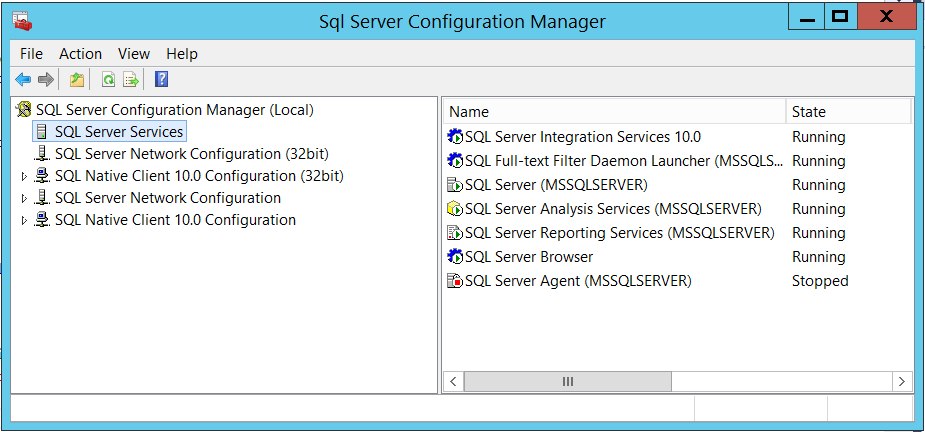
What I didn't realized is that I was using the SQL Server 2008 version of SQL Server Configuration Manager, not the 2012 version.  The 2008 version won't show the 2012 services but 2012 version will show all services.

To better explain, this screenshot is what I see when I run the 2008 version:


and this is the screenshot from the 2012 version:


Notice that 2012 version displays the SQL Server 2012 instance of the services.  Because I was using the 2008 version of the Configuration manager, I was unknowingly restarting the root server (2008) service, not the 2012 service.

After I restarted the 2012 instance, all worked just fine.

As far as Entity Framework is concerned, it seems to me that should expect an error that an instance can't be found when using the update-datebase command.  It would have been nice to see an error at a minimum (i.e. "Cannot find SQL instance, defaulting to root").

See https://msdn.microsoft.com/en-us/library/ms174212.aspx for exact locations of the specific version of SQL Server Configuration Manager.